REALM World Border Tutorial for Minecraft Bedrock 26.0
This is a world border setup for Minecraft: Bedrock 26.0 that you can use to limit the world boundaries for yourself and other players.
Start
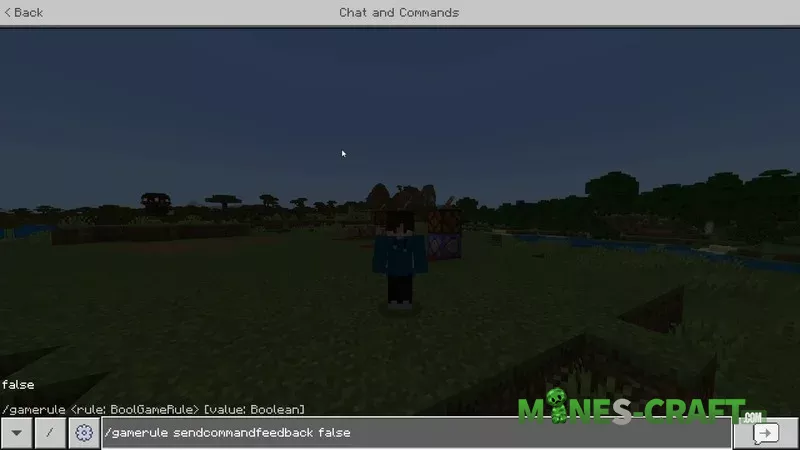
First, you need to set the command output to false – this controls responses and messages from command blocks. Then you wont get any unnecessary spam during setup.
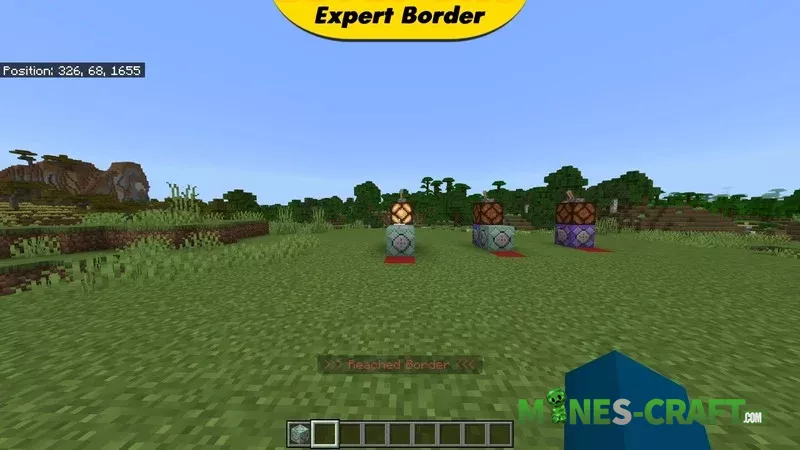
Basic world border
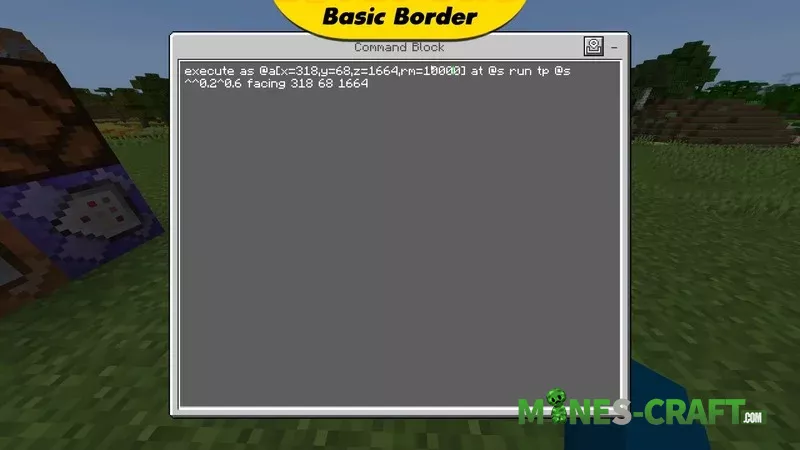
Let’s start with the simplest and most fundamental border. All it does is when you try to go outside the range, it simply turns you back and doesnt let you go any further. It’s very easy to do. You need a repeating, unconditional, and always active command block with the proper command inside.
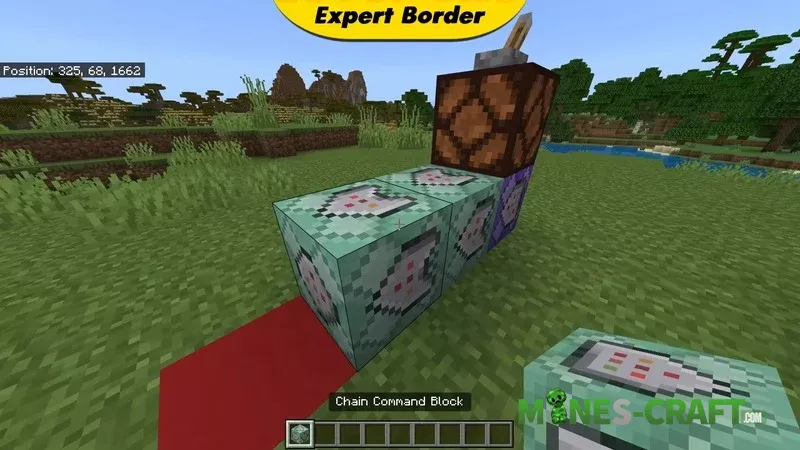
When you copy the command, you will see X, Y, and Z – these are your coordinates. They need to be adjusted to the place where you want the center of the border. To find out X, just enable the coordinate display. This is X, this is Y, and this is Z. Then paste them into the format: X equals, Y equals, and Z equals.
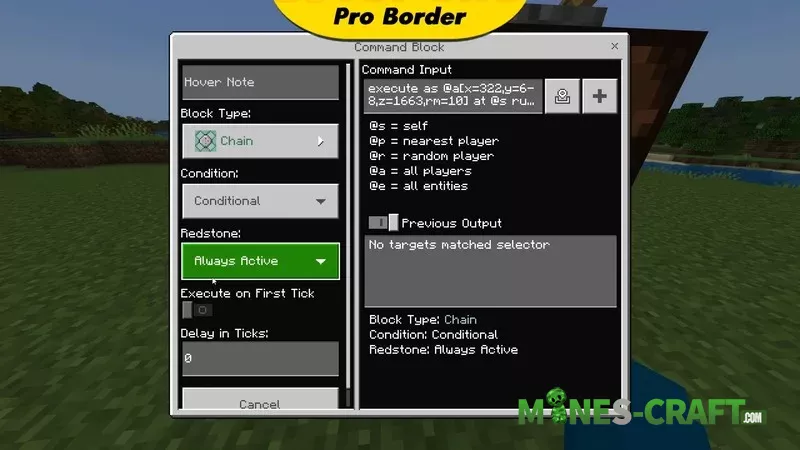
The RN parameter means the size of the border and how far you can move away. After you have specified the coordinates, all that remains is to write the rest – run TP RS, and where the numbers are specified leave them the same, with the arrows pointing up, then facing and your coordinates.
Improved version with notification
Let’s move on to a slightly more advanced version. If you have already done the previous one just put another block in front. The front block must be chained, conditional, and always active. Then copy the corresponding command.
X, Y, and Z must be exactly the same as in the repeating block. Be sure to use your own coordinates.
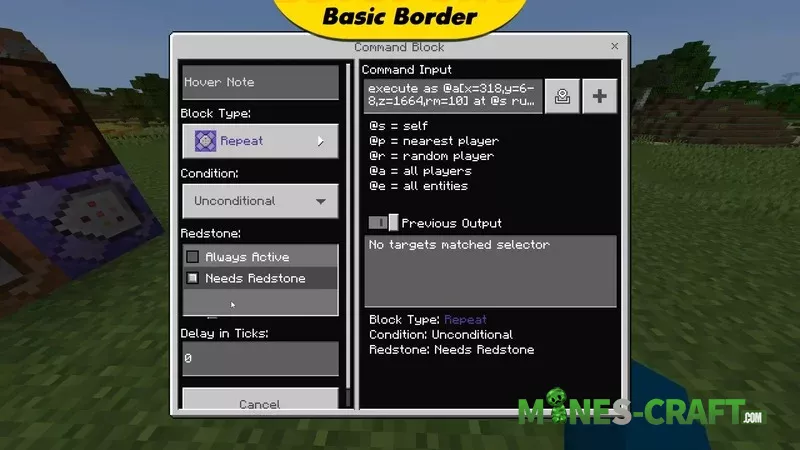
Where it says RM equ= 10, this is the border size. It must match the value in the repeating block, because the entire system depends on it. In short; the RM value in both command blocks must be the same.
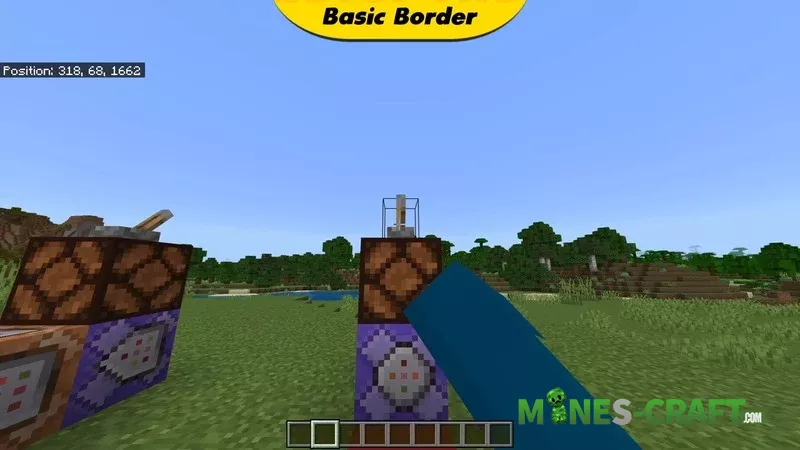
Now, when approaching the border, the message “reach border” will appear. The player receives a notification and understands they’ve reached the limit.
Advanced version with sound effect
Now for the advanced version of the border – basically, this means adding another command block to the chain. It must also be chained, conditional, and always active. Copy the command and make sure that X, Y, Z, and RM match the previous blocks.
After enabling it not only will a message appear when approaching the border, but there will also be a sound effect. By default, the Bedrock Edition beacon sound is used, but it can be replaced with any other sound. For example, you can use the creeper hiss and then a characteristic sound will be heard when the border is reached.
VIP border for special players
The last option is the so-called VIP border. It allows players with a specific tag to go beyond the usual restriction. To do this, take the advanced version and add the condition tag = !VIP. Then create similar blocks in the same order, but with tag = VIP without an exclamation mark.
This creates a normal border and a separate border for VIP players. Players without a tag will only be able to move a set number of blocks away, while those with a VIP tag will be able to move much further. Make sure that both chains are active and the system will work correctly.
That’s it. You can set up an effective and flexible world border in a Realm in just a few minutes by adding notifications, sounds, and separate conditions for VIP players. But if you dont want to deal with command blocks, then just download the Advanced World Border Addon.
![Arabian Desert City [Minecraft PE 1.2]](https://mines-craft.com/wp-content/uploads/2017/08/Arabian-520x245.jpg)
![Source Reload Shaders [Minecraft PE/WIN10]](https://mines-craft.com/wp-content/uploads/2017/07/Source-Reload-Shaders-520x245.jpg)