
Cinematic Editor Addon v2.0.0 [1.21]
The Cinematic Editor and its extension for Minecraft Bedrock on Windows are filmmaking tools that let you literally shoot movies right inside the game. The add-on offers a wide range of features related to cinematography. In a way, it can be seen as a more advanced version of the Camera Modes Addon.
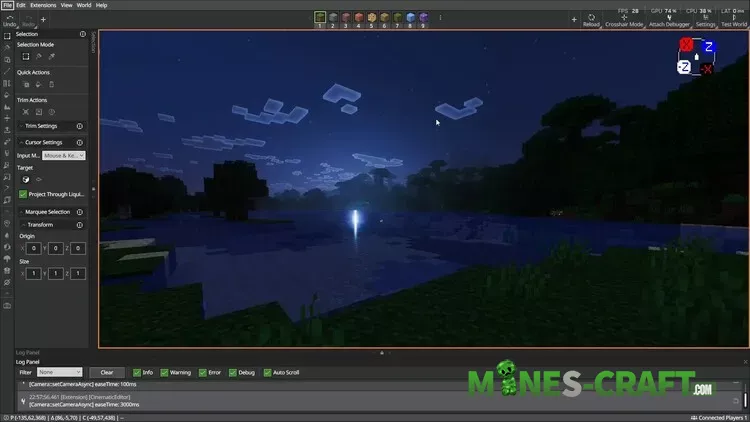
Creating Your First Scene
- Open the Cinematic Editor panel by clicking the camera icon in the Editor.
- Click Create Scene → this activates Scene Editor mode.
- Use Create Keyframe to save your current position & rotation.
- Add multiple keyframes to build a full camera path.
Camera Controls
- Keyframes → save camera positions.
- Easing → controls the motion curve between keyframes (smooth vs instant).
- Ease Time → how long the transition takes.
- Interpolation
- Linear: straight, simple motion.
- Hermite: smoother curves (requires at least 3 keyframes).
Effects & Commands
- Add fade in/out effects.
- Trigger custom commands at keyframes.
- Adjust fade color, duration, and timing.
- Multiple effects can be added to a single keyframe.
Editing & Managing Scenes
- Modify Keyframes → adjust easing & timing (to change position, delete and re-create).
- Scene Actions:
- Play Scene → preview camera path.
- Export Scene → share or use with Cinematic Runtime (future support for V2).
- Reset Scene → delete all keyframes.
HUD Options
Toggle what shows during playback:
- Hotbar, crosshair, health, armor, hunger, effects, progress bar, etc.
Planned Features
- FOV changes.
- Multiple sequences playback.
- Replay/record gameplay like ReplayMod.
- Runtime scene export/import support.
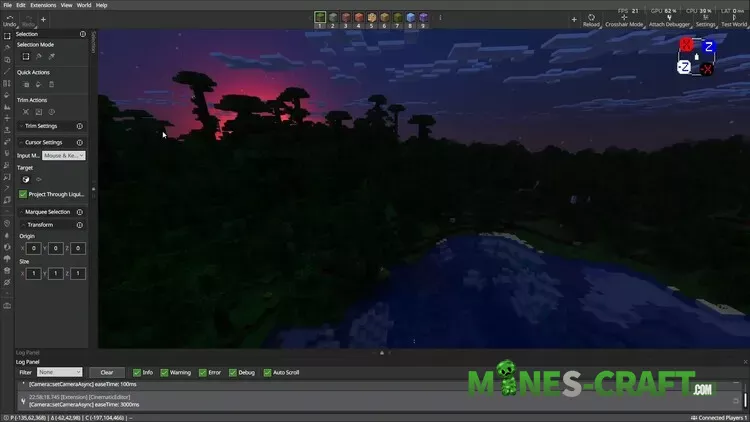
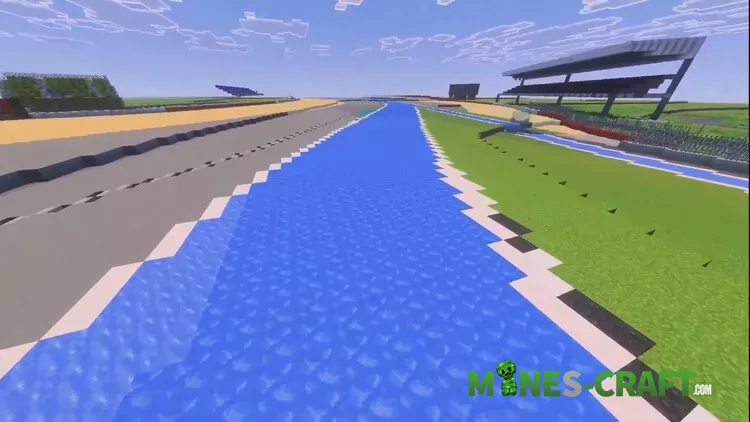
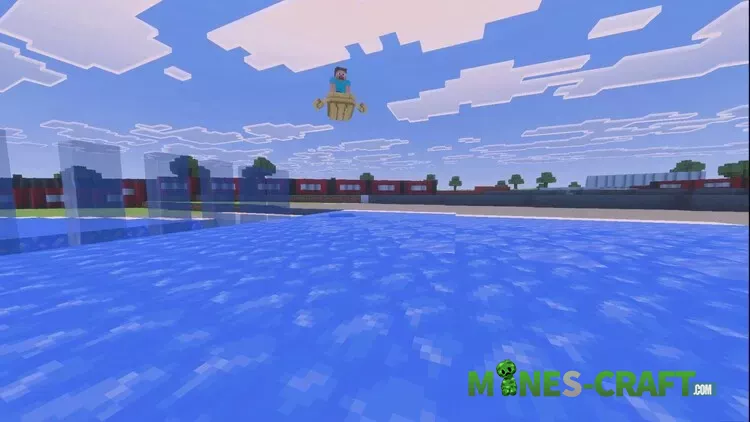
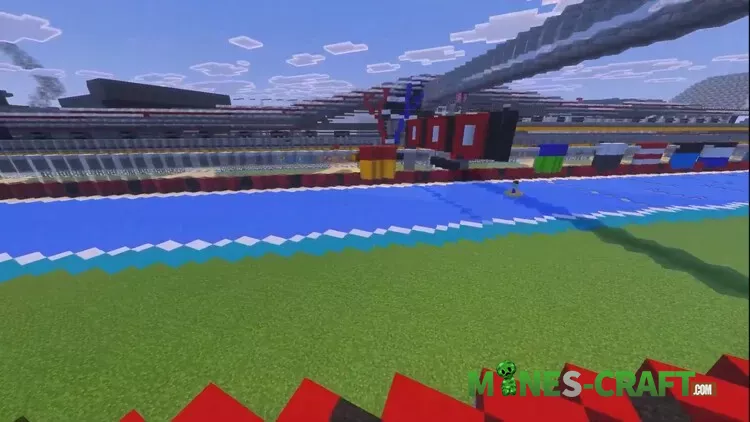
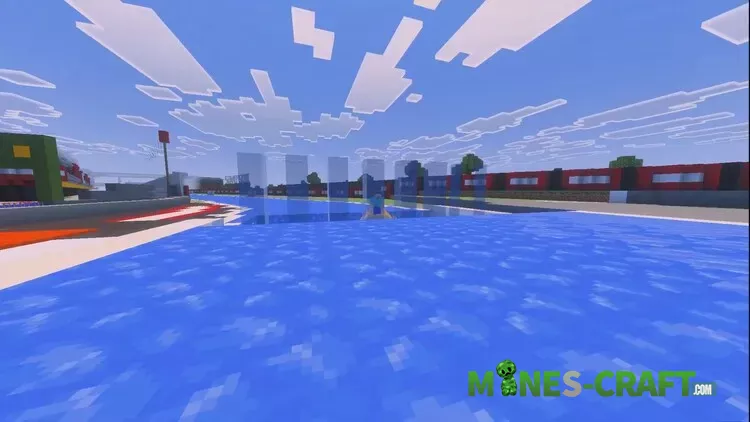
Cinematic Expample
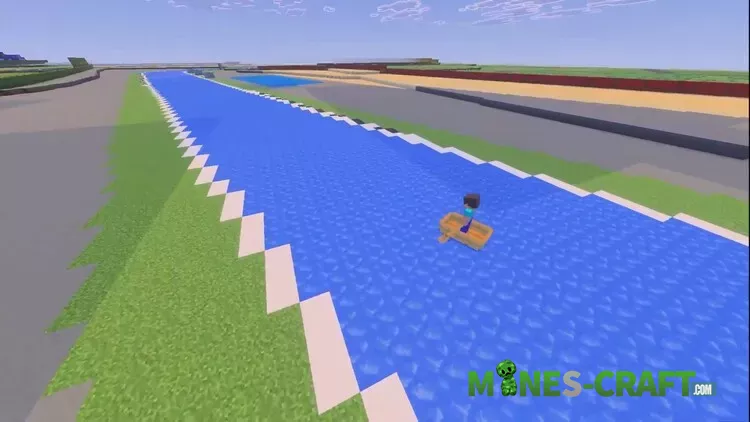
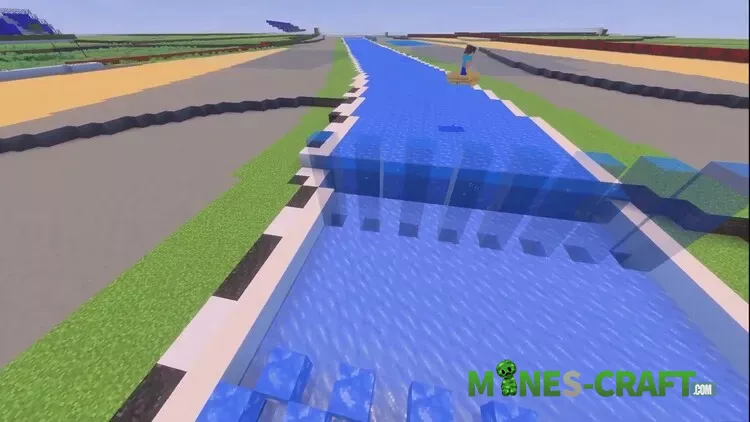
Installation
- Download the latest
.mcpackfiles for Cinematic Editor V2. - Import them into Minecraft Editor (Windows).
- Launch Minecraft Editor either from the Creator Tools tab in the launcher or with a shortcut (
minecraft:?Editor=true).
![More Vanilla Tools Mod [Bedrock 1.21/26.0] – photo 1](https://mines-craft.com/wp-content/uploads/2026/01/logoo-520x245.webp)
![Wildlife Wonders Addon ver.2 Beta [Bedrock 26.0+] – photo 10](https://mines-craft.com/wp-content/uploads/2026/01/Wildlife-Wonders-Addon-520x245.webp)
![Blazik’s Arsenal Addon ver.1.1 [Bedrock 1.21/26] – photo 1](https://mines-craft.com/wp-content/uploads/2026/01/Blaziks-Arsenal-V1.1-Update-_-3D-Guns-Addon-Showcase-for-Minecraft-Bedrock-and-Mcpe-1.21.130-0-5-screenshot-520x245.webp)
![Family Life Addon ver5.0 [Bedrock 1.21/26.0+] – photo 1](https://mines-craft.com/wp-content/uploads/2025/12/Family-Life-Addon-6-520x245.webp)

![Simple Waystone for Bedrock [1.21/26.10+] – photo 1](https://mines-craft.com/wp-content/uploads/2026/01/Simple-Waystone-for-Bedrock-1-520x245.webp)
