Flarial Client for Minecraft Bedrock 1.21/26.1 [Windows]
If you’re looking for a clean, modern Minecraft Bedrock client then the Flarial Client is definitely worth checking out. Known for its smooth design and wide range of useful modules, this client brings both functionality and style to Bedrock Edition 1.21.
Key Features
Clean and customizable interface
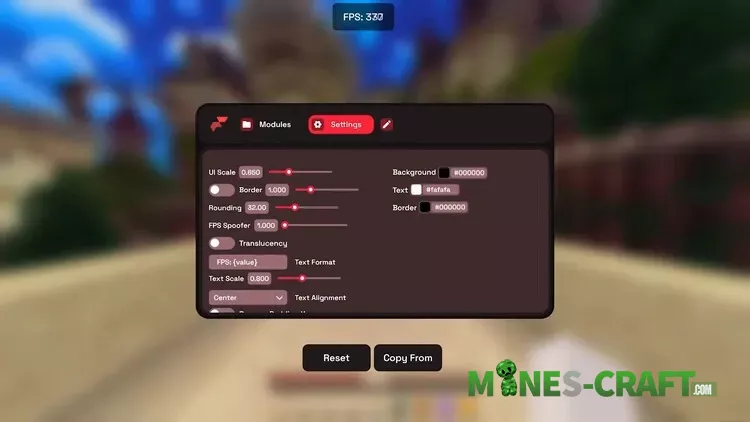
The client stands out with its minimal yet stylish design. Every module can be customized in detail, from scaling to text formatting. You can even adjust background colors, text alignment, borders, and rounding for a personal touch.
FPS Boost & Performance Options
Flarial comes with built-in FPS boosting features. There’s also an FPS Spoofer option that allows you to change how your FPS is displayed, though the real benefit comes from the actual performance optimizations included in the client.
Modular System with Useful Add-ons
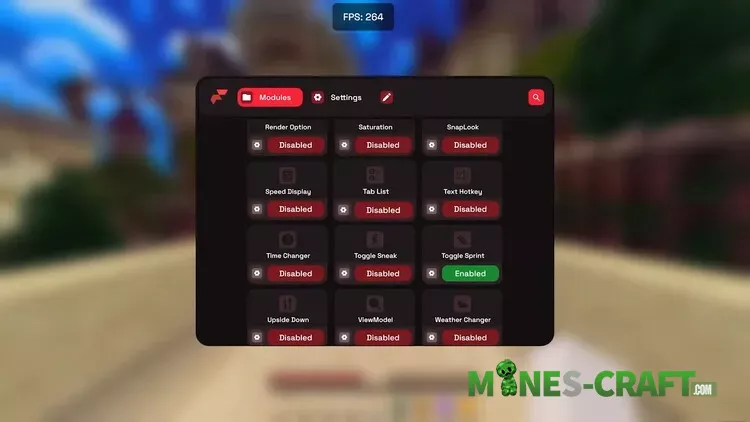
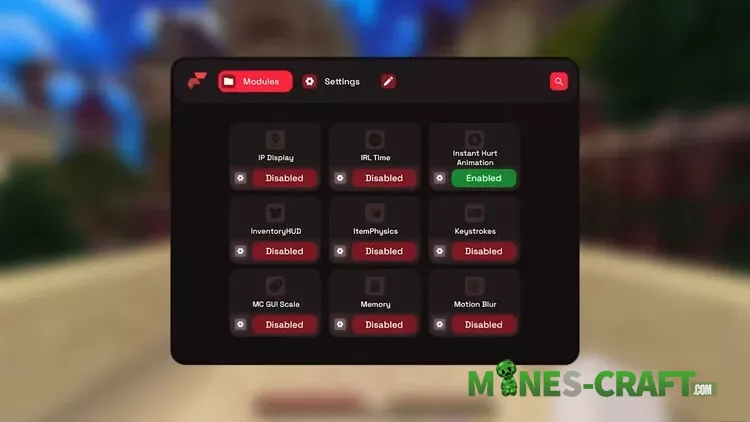
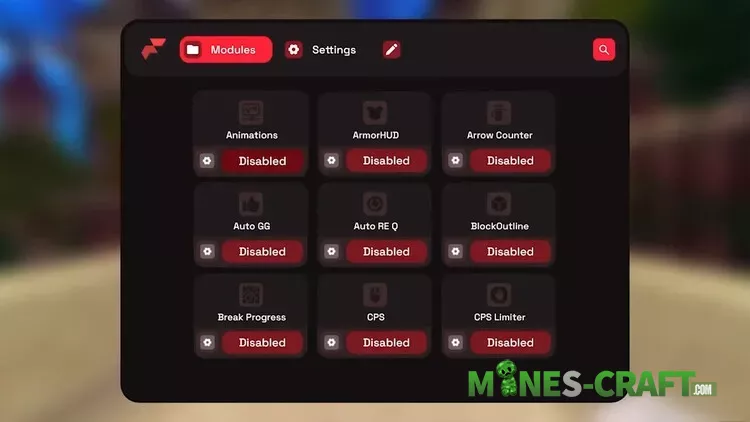
The module menu gives you access to dozens of toggles:
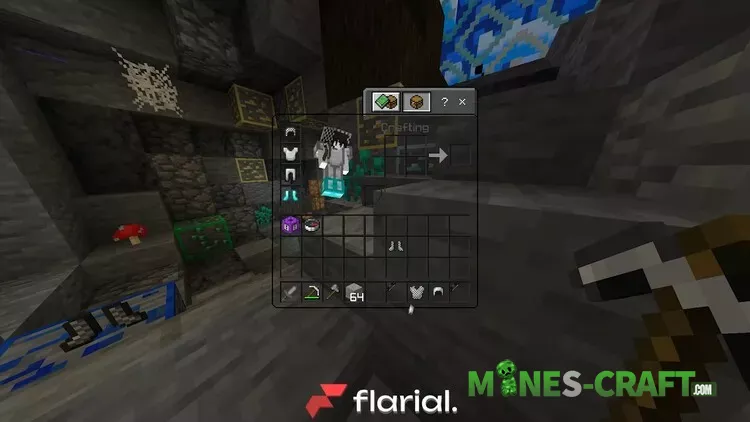
- ArmorHUD
- CPS Counter & Limiter
- Arrow Counter
- Block Outline
- Break Progress
- Auto GG
- Auto Reconnect
- Toggle Sprint & Sneak
- Speed Display
- SnapLook
- Tab List
- Weather & Time Changer
All of these can be enabled or disabled at will, letting you build your perfect setup.
Gameplay Enhancements
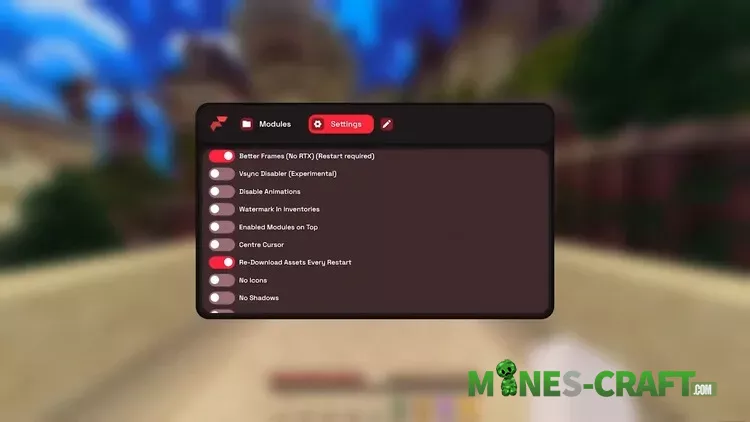
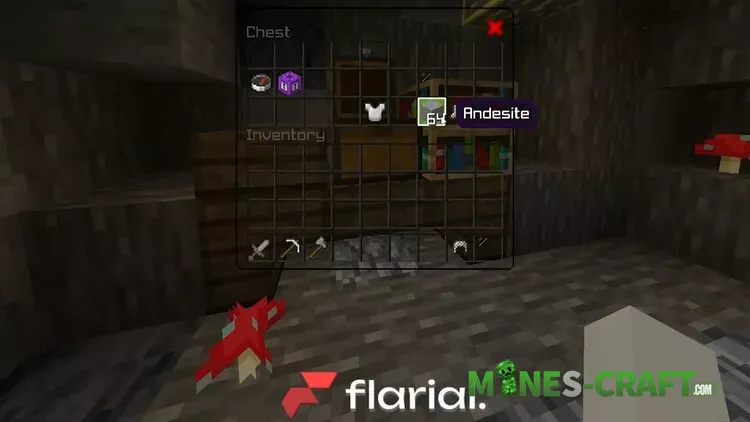
In-game, Flarial adds a watermark at the bottom of your inventory (which can be disabled in settings), and overlays like FPS display are clear and easy to read. The menus are fluid and visually appealing – you could spam them all day without them feeling clunky.
Troll & Fun Modules
Besides the practical features, there are also a few lighthearted ones like Upside Down View or SnapLook, giving players more ways to experiment with their perspective.
Why Flarial?
Compared to other popular clients, Flarial offers one of the cleanest and best-looking designs available right now. It’s lightweight, user-friendly, and offers just about every module you’d need for PvP, survival, or just casual play.
And if you’re interested in exploring more alternatives, you can also check out the OderSo Launcher which delivers a different approach to customization and FPS boosting.
FAQ
How to remove files created by the client?
- Restart your system, this will release any client resources held by the operating system.
- Go to:
%LOCALAPPDATA%\Packages\Microsoft.MinecraftUWP_8wekyb3d8bbwe\RoamingState- Delete the folder called
Flarial.
How to remove files created by the launcher?
- Close Flarial Client’s launcher.
- Go to:
%LOCALAPPDATA%\Flarial\Launcher- You can safely delete all folders except
Versions&Backups.
These folders contain game files & backups of the game’s data hence they should be deleted with caution.
How do I delete the Versions folder?
- Run the following command in PowerShell:
Get-AppxPackage -Name "Microsoft.MinecraftUWP" | % { $_.IsDevelopmentMode }If the command returns False, you can safely delete the folder if not then proceed with the following.
- Run the following command to safely uninstall the game without it’s data being deleted:
Get-AppxPackage -Name "Microsoft.MinecraftUWP" | Remove-AppxPackage -PreserveApplicationData- Reinstall the game via the Microsoft Store or Xbox App.
How do I delete the Backups folder?
- Open the launcher.
- Go to Settings → Backups.
- Load any backups if required.
- Delete the folder.
What do I do if the launcher is stuck at “Updating 100%”?
Before making a ticket, consider trying these fixes:
- Reinstall the launcher.
- Spam Alt + F4 (or Fn + Alt + F4, depending on your device) to put the launcher out the update loop.
- Run
ipconfig.exe /flushdnsin cmd to clear out outdated DNS records. - Wait for a couple of minutes.
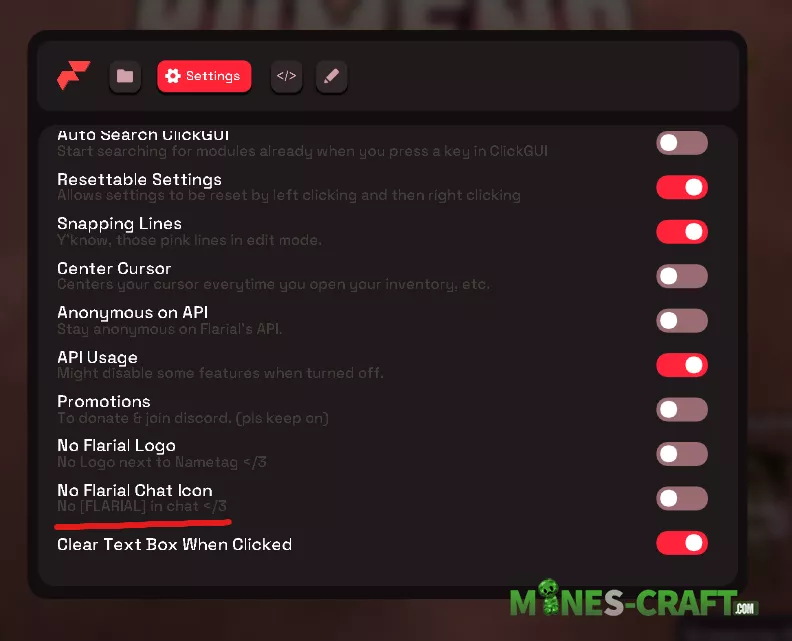
How do I disable the [FLARIAL] Tag?
- Open the ClickGUI using K or whatever keybind you set for opening it.
- Click on “Settings”.
- Disable off the “No Flarial Chat Icon” toggle (See screenshot below).
if client cant inject (even with external injectors)
Download and install this https://aka.ms/vs/17/release/vc_redist.x64.exe And try again
Fix better renderdragon not working with Flarial
This is how to fix Minecraft Bedrock from freezing after you try to inject Flarial together with better renderdragon follow those steps very carefully!
- inject Flarial without better renderdragon and go to global settings
- In there turn off the following:
- better frames
- vsync disabler
- recreate swapchain on start
- Force intel dx11 (Only necessary to turn off if you have an Intel GPU)
- Press F7 to save the changes
- Close Minecraft
- Open Minecraft using the openMinecraft.bat shipped with better render dragon
- After it loads Minecraft with better render dragon inject Flarial
You should now be able to use Flarial with your favourite shaders
Changelog
Version Jan 5, 2026:
- New interface with a sidebar.
- Folder buttons in settings now work properly.
- Old subsystems (Legacy Launcher) have been removed
- Fixed a bug with DLL verification in Windows.
- Sponsor banner loading optimized, launcher performance improved.
- Reduced binary size.
- MCPE 26.1 support (~26.3)